Viking Village Won't Compile in Unity 6? Every Error, Explained and Fixed
Open Unity’s classic Viking Village URP demo in Unity 6 and you get a wall of red — and a sea of pink. The Asset Store reviews tell the story: the most recent ones are one-star reports like “Abandoned asset – will not work in Unity 6” and “Needs the RTHandle system, the one it comes with is obsolete and not a simple fix.”
They’re not wrong about the errors. They’re wrong that it’s not fixable. This post walks through every error the project throws on Unity 6000.5, what each one actually means, and the exact fix — first by hand, then the way we actually did it: letting a migration tool rewrite the files and compile-verify the result.
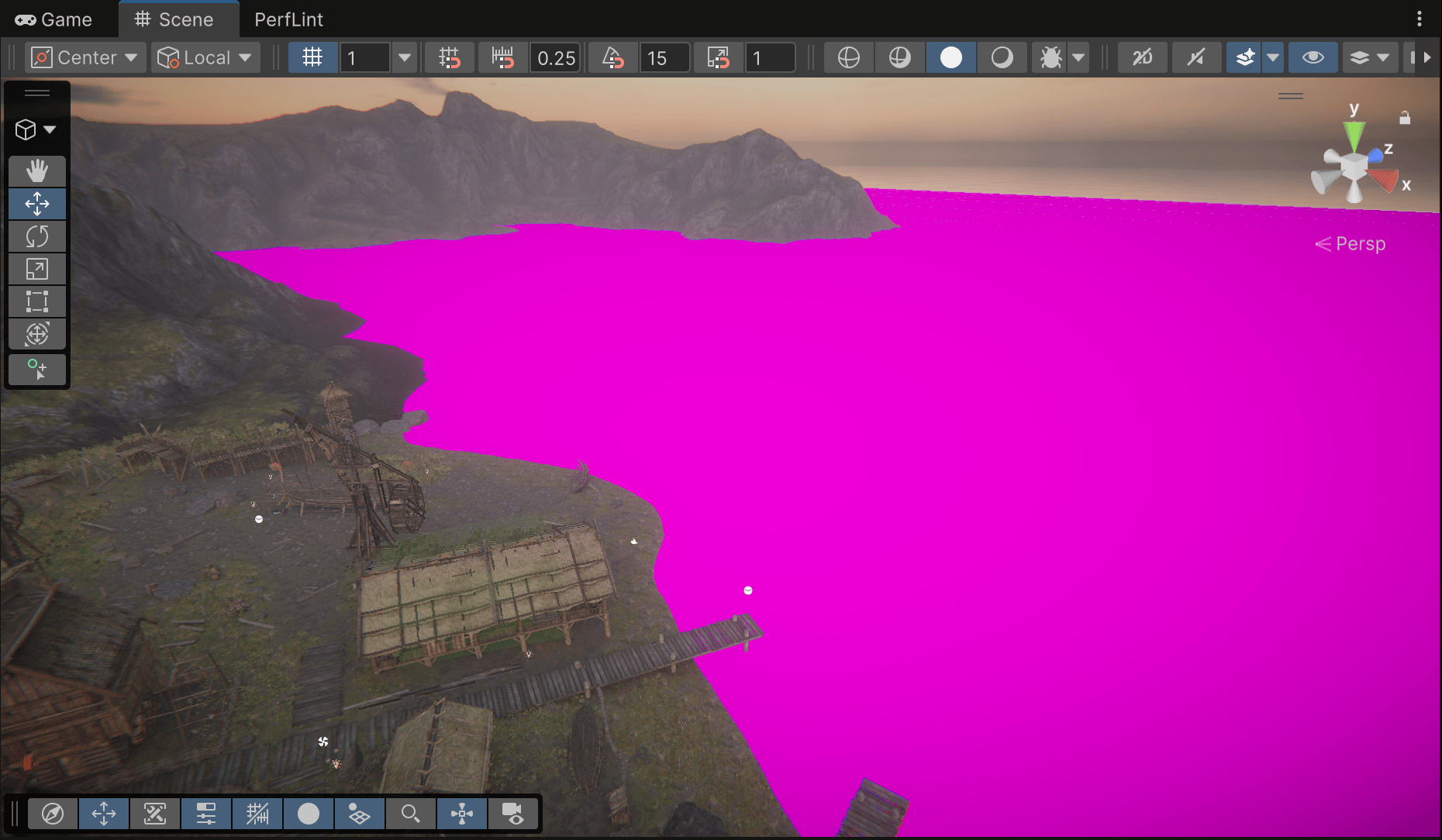
And this is what the bay looks like before any fixes — the Boat Attack water shaders fail to compile, so every water surface falls back to Unity’s magenta error shader:
The full damage report
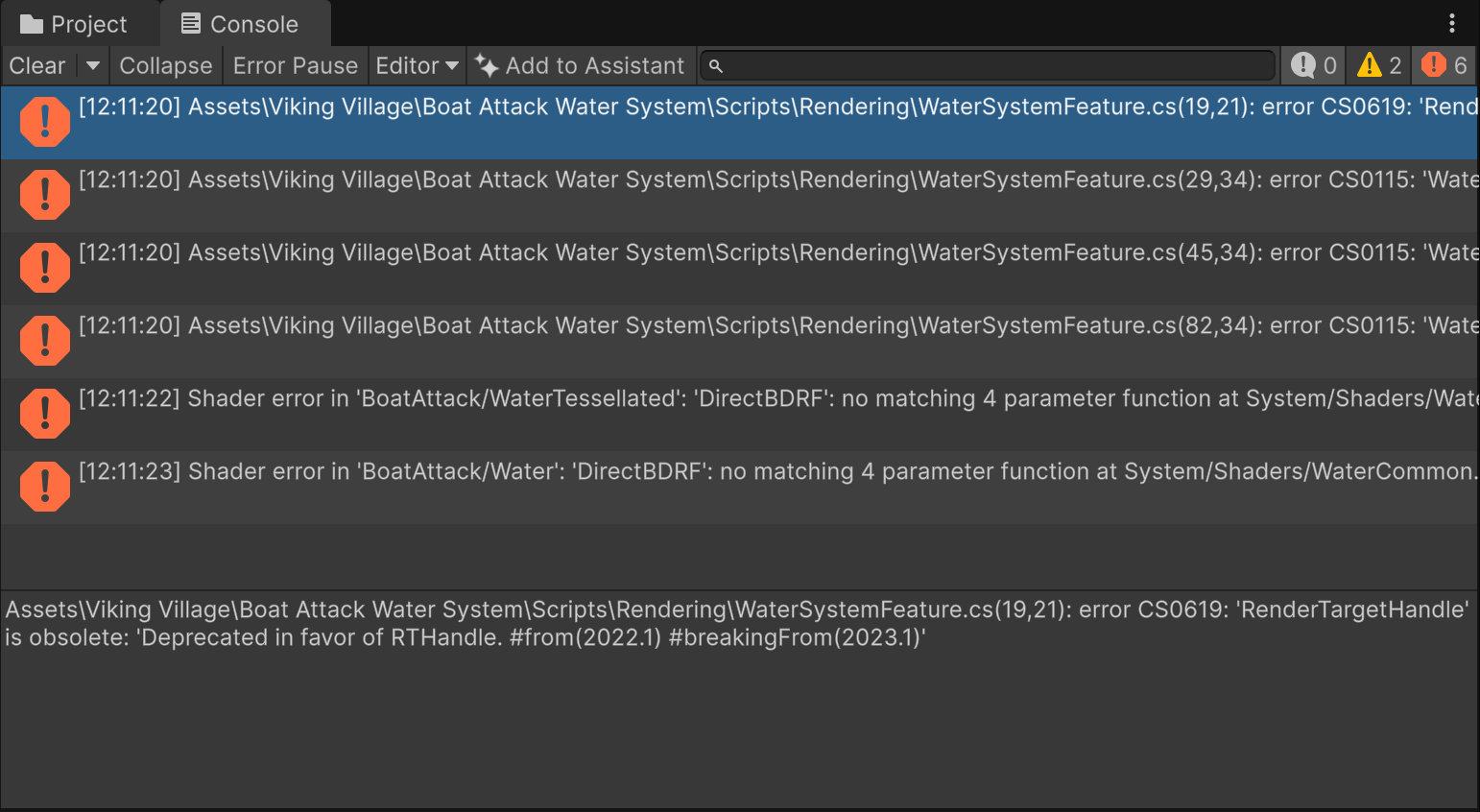
A scan of the freshly-imported project surfaces five blockers (PerfLint groups them under Migration; your Console shows the same facts as loose errors):
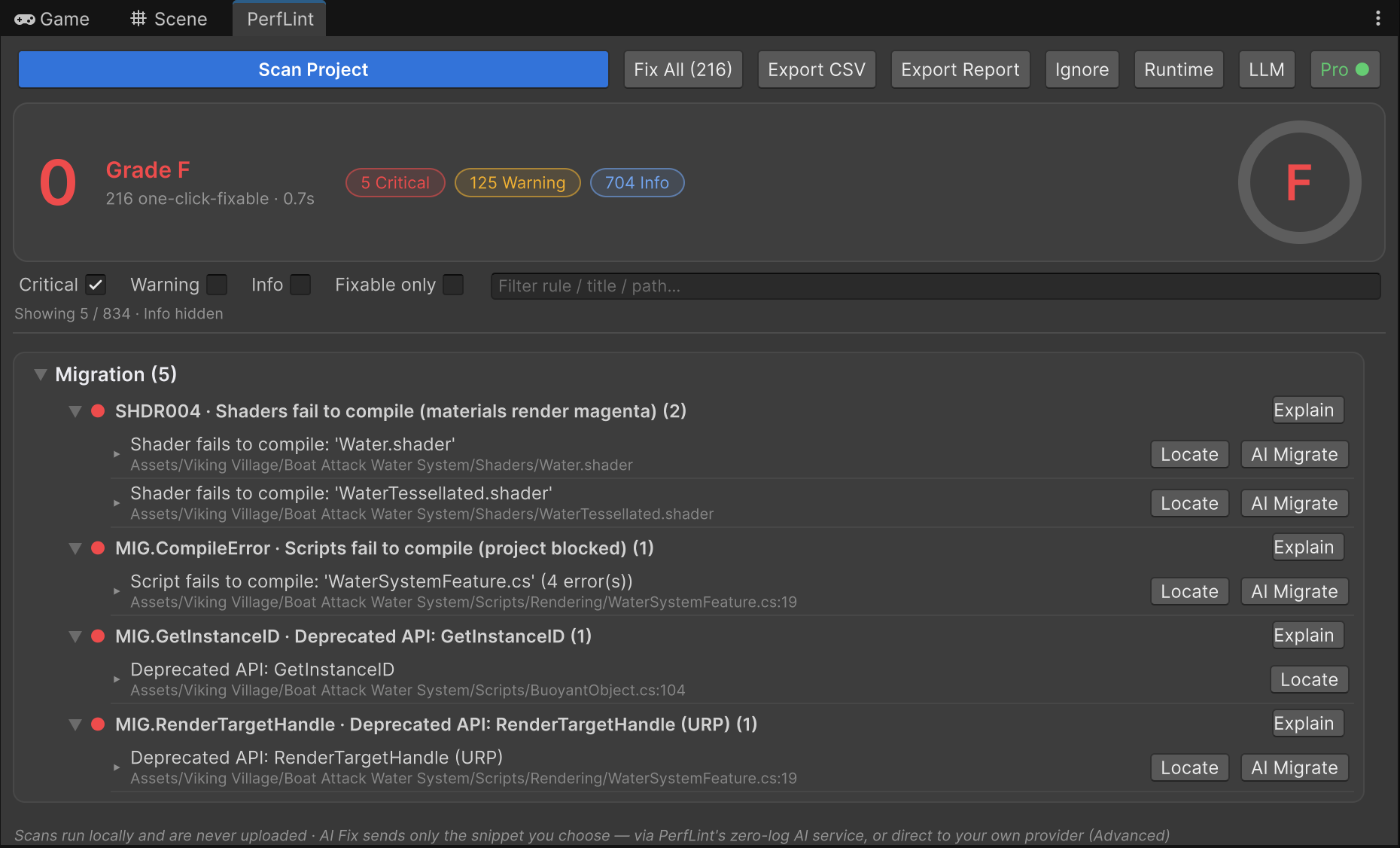
RenderTargetHandleis obsolete (CS0619) —WaterSystemFeature.cs, the custom render feature behind the water. Deprecated in Unity 2022.1, error-level in 2023.1+/Unity 6. The three CS0115 errors underneath it are collateral: once the type is gone, the pass’s overrides stop matching their base signatures.'DirectBDRF': no matching 4 parameter function— bothWater.shaderandWaterTessellated.shader, via the sharedWaterCommon.hlslinclude. URP 12 renamed the misspelledDirectBDRFtoDirectBRDF. One character swap, two dead shaders, all the magenta above.GetInstanceIDis obsolete (CS0619) —BuoyantObject.csuses it as a lookup key for the buoyancy job system. Newer Unity 6 releases replace it withGetEntityId(), and there is no legal conversion fromEntityIdback toint, which makes this less trivial than a rename.
Fixing it by hand
If you’d rather do it manually, here’s the honest version of each fix.
RenderTargetHandle → RTHandle
This is the one the reviews call “not a simple fix” — and structurally, they’re right. It’s not a rename: allocation, release, and the pass callbacks all change.
- Declarations:
RenderTargetHandle m_Temp;→RTHandle m_Temp; - Allocation moves into
OnCameraSetup, viaRenderingUtils.ReAllocateIfNeeded(ref m_Temp, desc, …)(newer URP renames itReAllocateHandleIfNeeded). m_Temp.Identifier()→ pass the handle itself;cmd.GetTemporaryRT / ReleaseTemporaryRT→ delete, release explicitly inDispose()withm_Temp?.Release().- On Unity 6, check which pass shape your URP actually exposes: if
OnCameraSetup/Executeare gone fromScriptableRenderPass, the pass logic must move intoRecordRenderGraph(the Render Graph API) — a genuinely different structure.
DirectBDRF → DirectBRDF
Open WaterCommon.hlsl, line 274, and swap two characters. That’s the whole fix — if you know
that’s the fix. The compiler error (no matching 4 parameter function) doesn’t mention the
rename, which is why this one eats an afternoon of forum-searching.
GetInstanceID → don’t chase EntityId
BuoyantObject only uses the id as a unique key — it never needs the actual Unity object
identity. Migrating the key to EntityId would ripple through two more files (the job system’s
dictionaries and method signatures all take int). The minimal, behavior-identical fix is a
static counter:
private static int _nextGuid;
// in OnEnable — was: _guid = gameObject.GetInstanceID();
_guid = ++_nextGuid;
Reserve the real GetEntityId() migration for code that genuinely needs object identity.
Fixing it in a few clicks
We built PerfLint’s Migration Assistant for exactly this shape of problem, so here’s the same
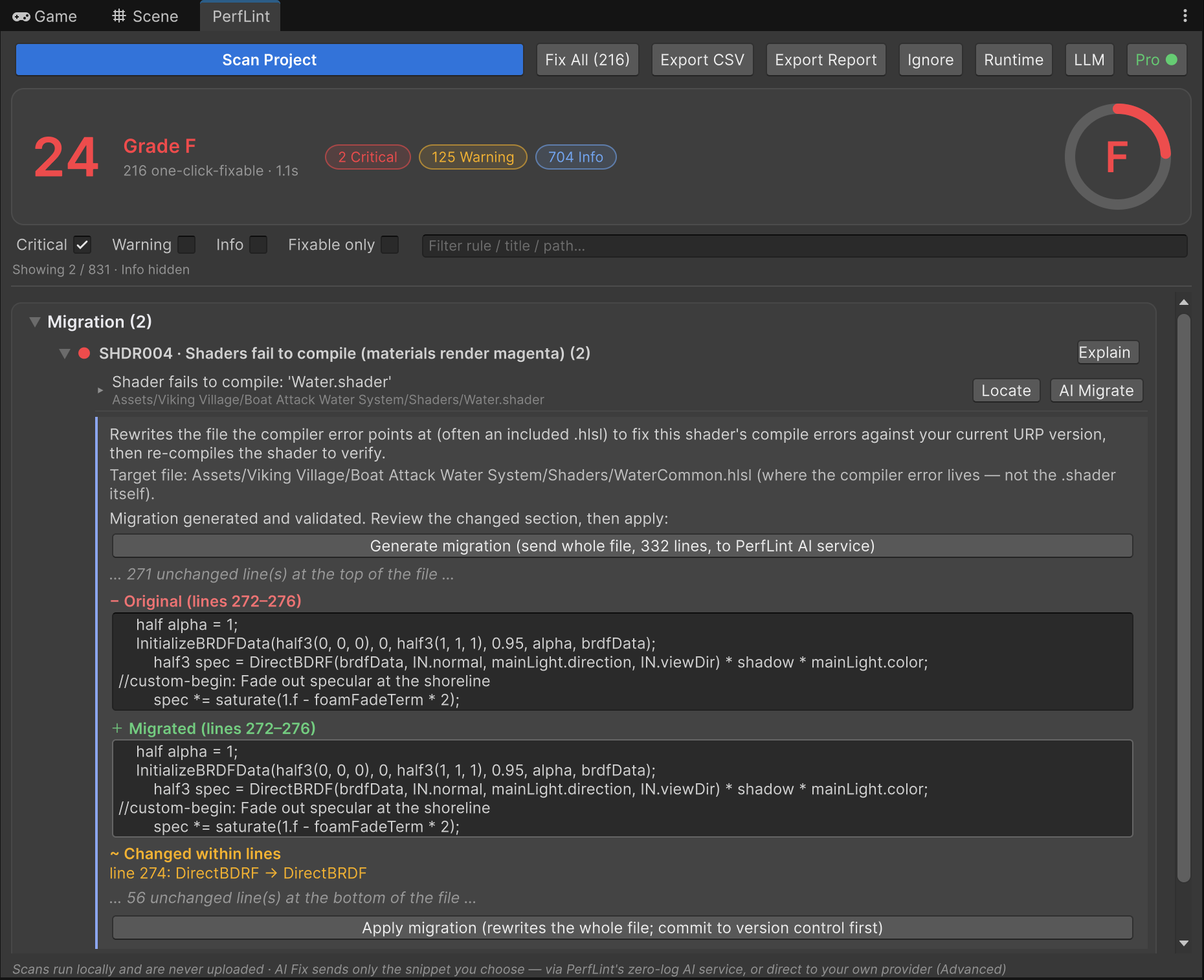
project fixed with it. Each Critical finding carries an AI Migrate button. For the shaders,
it targets the file the compiler error actually lives in — WaterCommon.hlsl, not the .shader
shell — shows the whole-file diff, and summarizes in-line changes so a two-character rename
can’t hide:
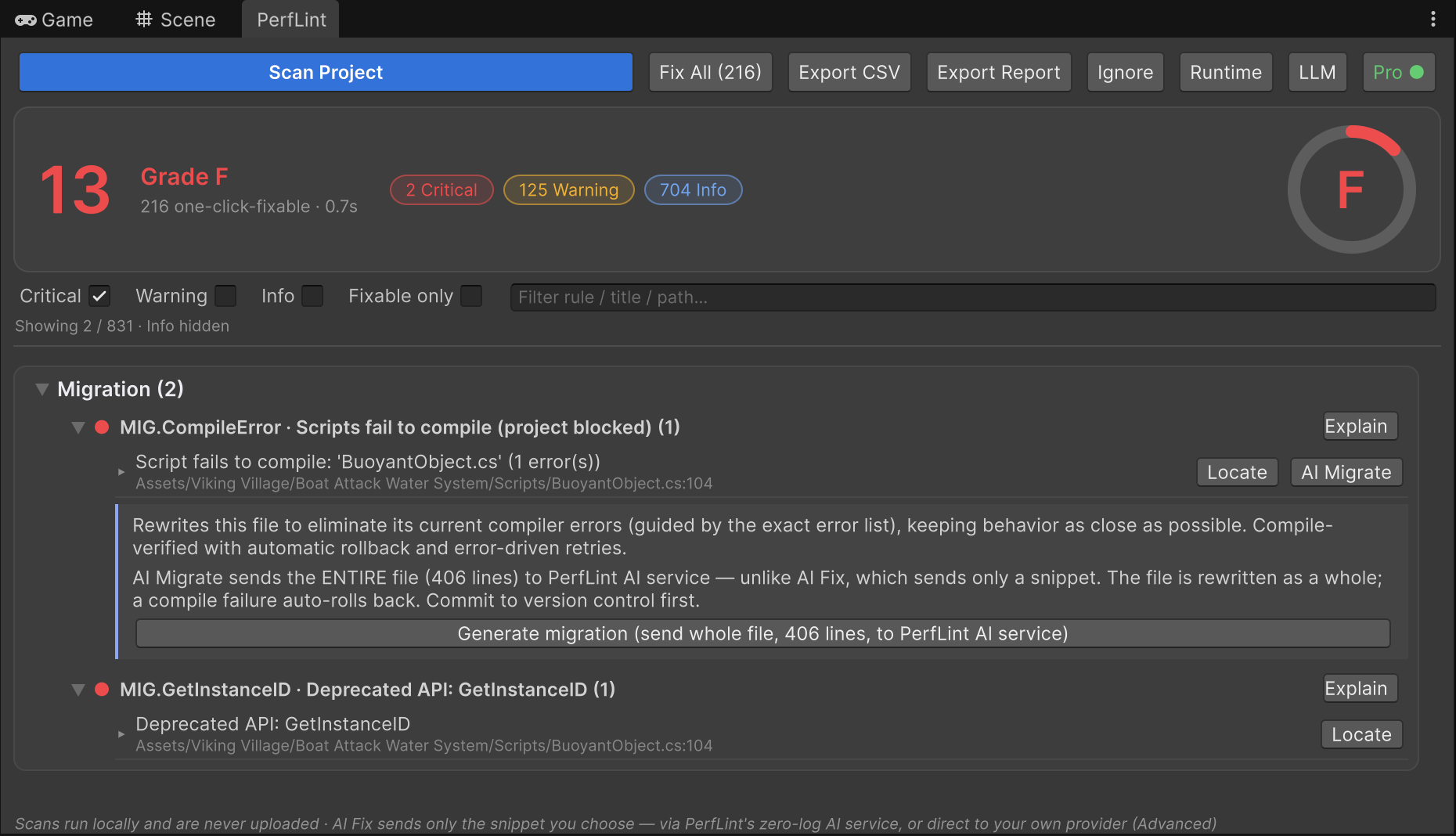
The C# side works the same way — the whole file goes to the model along with the exact compiler error list, and the result only sticks if the project compiles afterwards (a failed rewrite rolls back automatically):
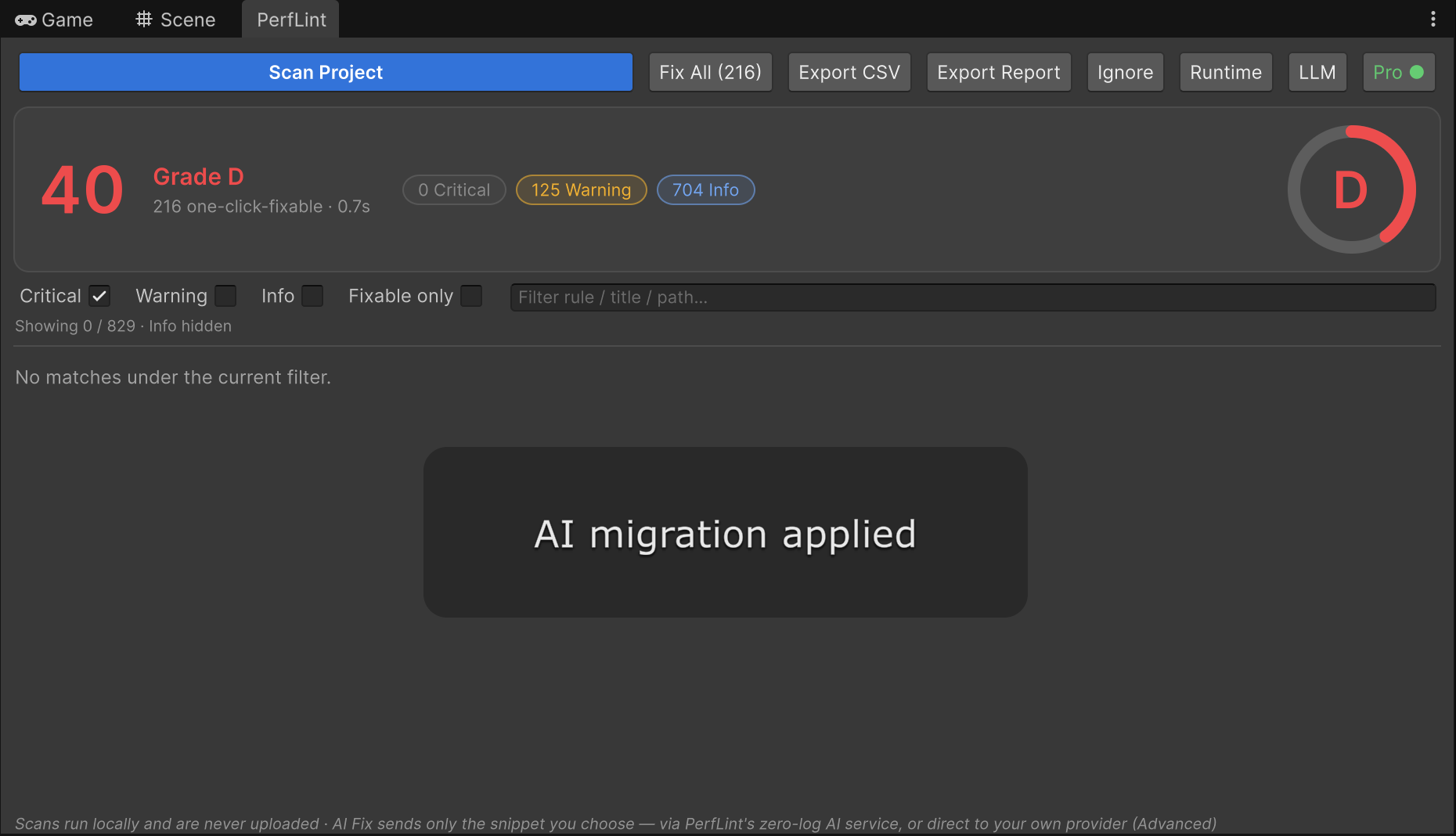
A few Generate → review diff → Apply cycles later — one per broken file — the Critical list is
empty. Fixing the shared WaterCommon.hlsl healed both water shaders in one pass; the
BuoyantObject fix landed exactly as the static-counter version above:
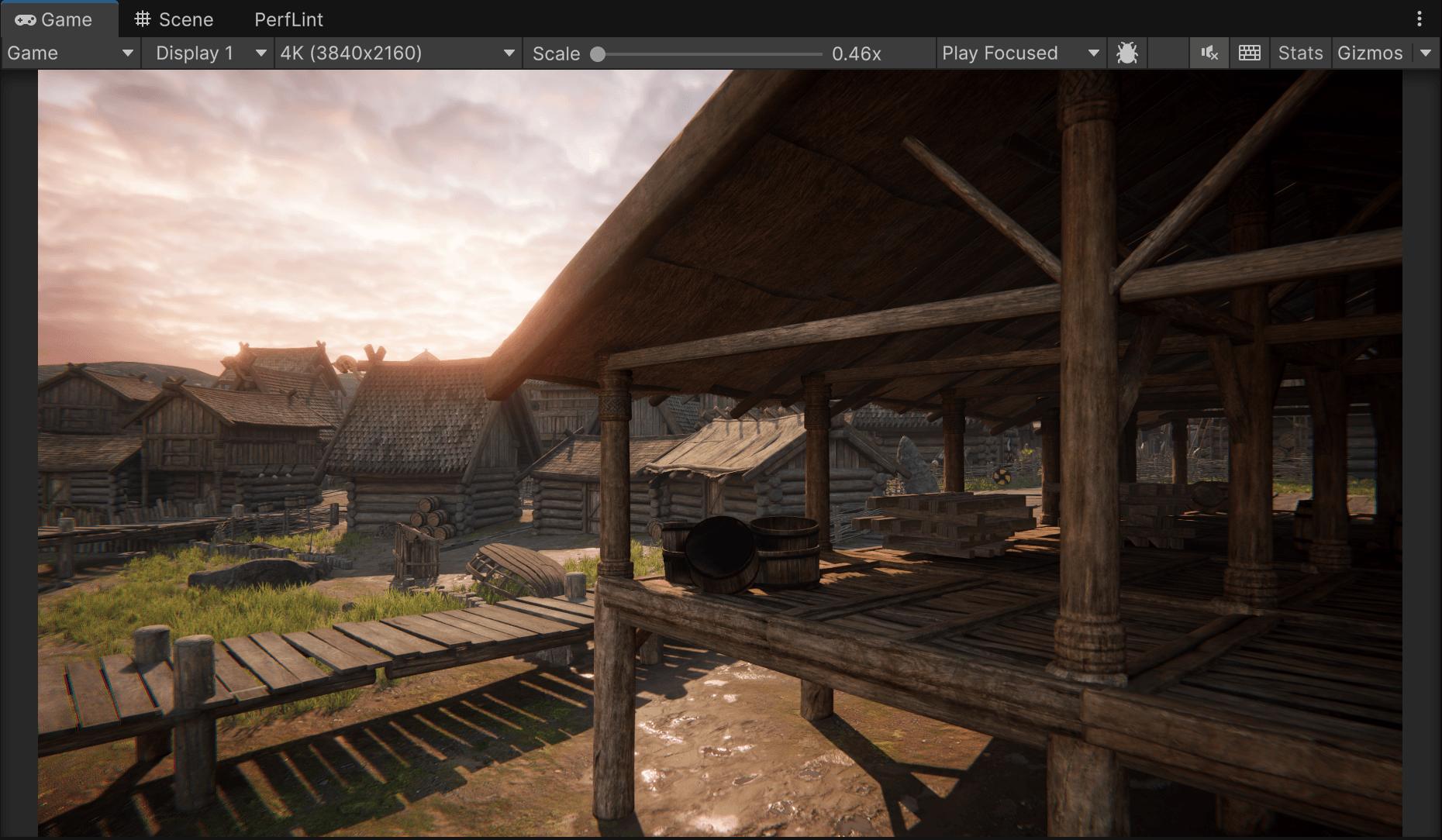
The village, back from the pink
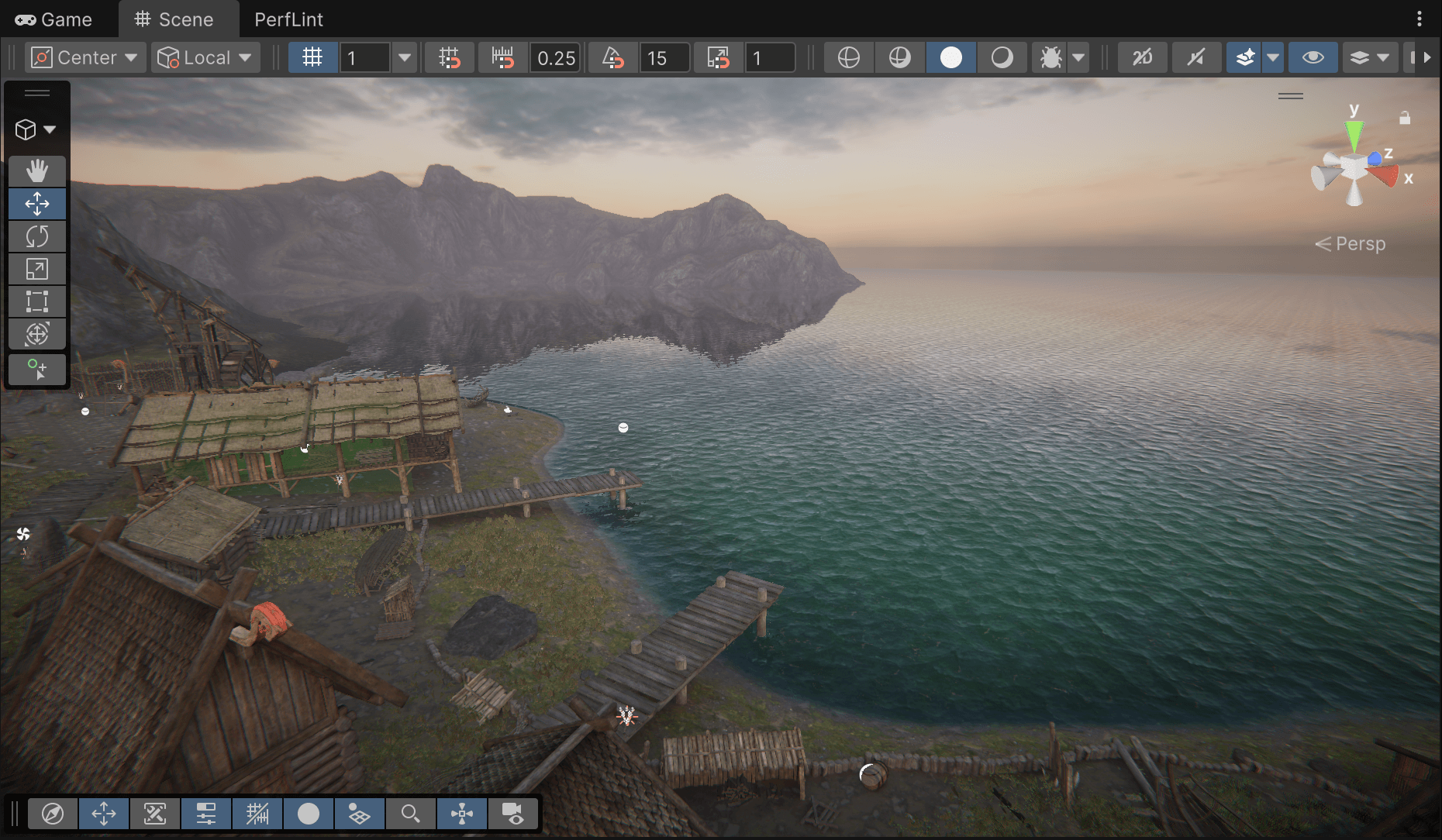
Same bay as the magenta screenshot, after the shader fix — Gerstner waves, shoreline foam, mountain reflections and all:
Two honest footnotes from the process:
- After a shader is rewritten, the editor sometimes shows black water or missing ambient light until the scene reloads — that’s editor state (the water system’s C# feeds shader globals on scene load), not broken assets. PerfLint offers a one-click scene reload after a shader migration for exactly this.
- A compile pass can’t judge visual correctness. Eyeball your scene after any migration, automated or manual. (Here, the water came back exactly as it should.)
The takeaway
“Abandoned asset – will not work in Unity 6” is really five small, well-understood API breaks stacked on top of each other. Every one of them is fixable in minutes once something tells you which file, which line, and what the modern replacement is — which is precisely the gap between a wall of red and a working project.
PerfLint’s scan (free) finds all of the above locally — nothing is uploaded. The one-click AI migrations are part of Pro. Try it on your own stuck upgrade →