One Click Cut Viking Village's Texture Memory by 200 MB — Unity's Mipmap Streaming, Actually Used
Unity has shipped a feature since 2018.2 that loads only the mip levels your camera can actually see instead of every texture at full resolution. It routinely reclaims dozens to hundreds of megabytes of texture memory, it costs a small amount of CPU, and it’s free.
Almost nobody turns it on.
The reasons are practical, not mysterious. The switch lives in two places (a Quality Settings toggle and a per-texture importer flag — miss either half and nothing happens). On URP/HDRP there is no built-in debug view to tell you what it’s doing. And everyone has heard a story about streaming making textures pop in blurry, so the default position is “don’t touch it.”
This post is what happened when we stopped not-touching it — on Unity’s own Viking Village URP demo, with the Profiler attached to a Windows standalone build the whole time.
The starting point: 0.77 GB of textures
Fresh scene, no streaming. The Memory Profiler’s category view puts Textures at 0.77 GB across 291 texture objects — the single biggest consumer in the project, ahead of render textures and meshes combined:
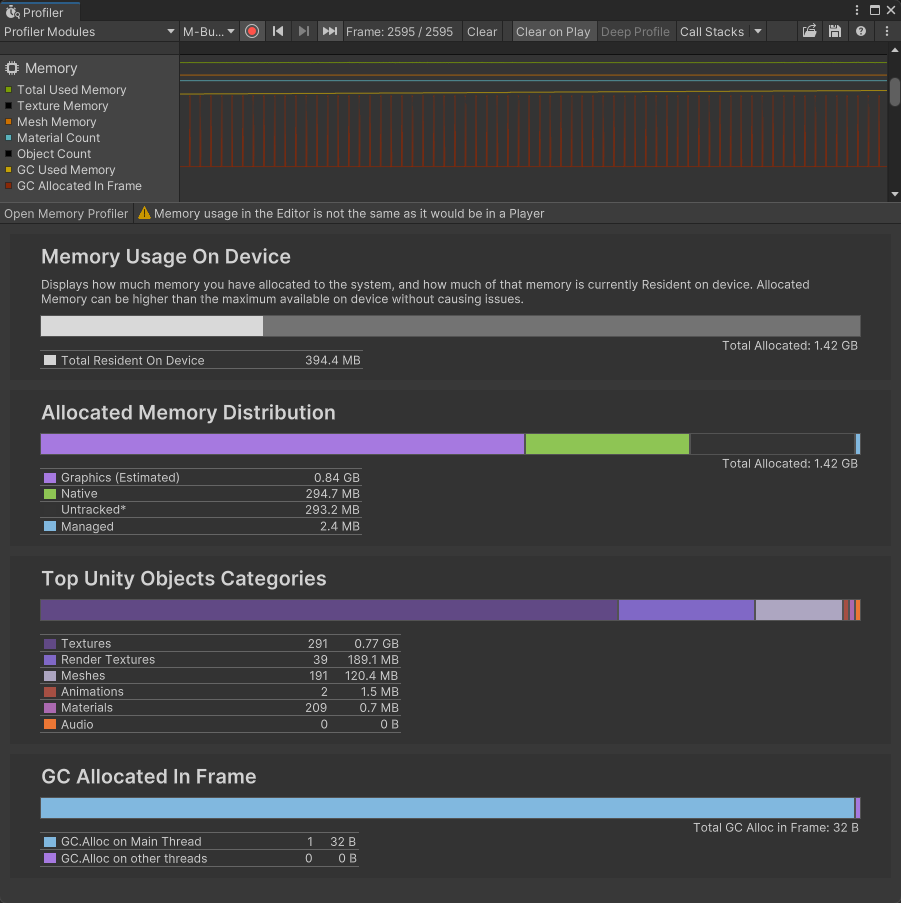
That number is normal, not negligent. Viking Village’s textures are mostly 2K–4K with full mip chains, and without streaming Unity loads mip 0 of everything the scene references, whether the camera is two meters from that barrel or two hundred.
One click, both halves of the switch
A PerfLint scan quantifies the opportunity instead of hand-waving it: 180 mipmapped scene textures, an estimated ~530 MB pool, currently not participating in streaming. The finding’s action enables the per-importer Stream Mip Maps flag on all 180 — and flips the Quality Settings toggle too if it’s off, so you can’t end up in the half-configured state:
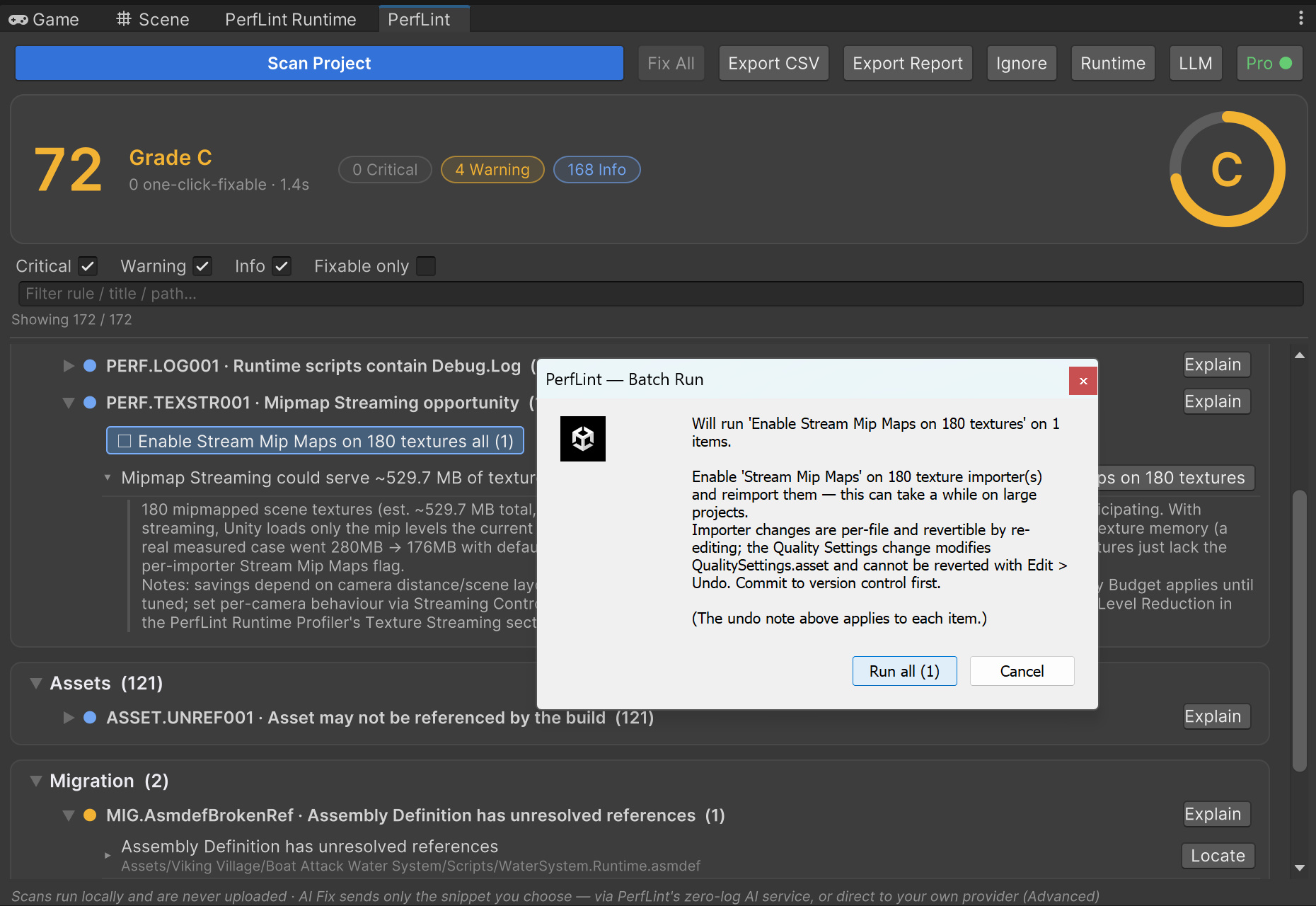
Two things the confirmation is careful about, because they’re the honest caveats of this feature: the number is the eligible pool, not a promised saving (how much streaming reclaims depends on where your cameras actually are), and the batch reimports 180 textures, which takes a few minutes on a big project.
UI textures, sprites, and small textures are deliberately excluded — streaming buys nothing for things rendered at fixed screen distance.
The receipt: −200 MB
Same build, same scene, same camera, after the batch:
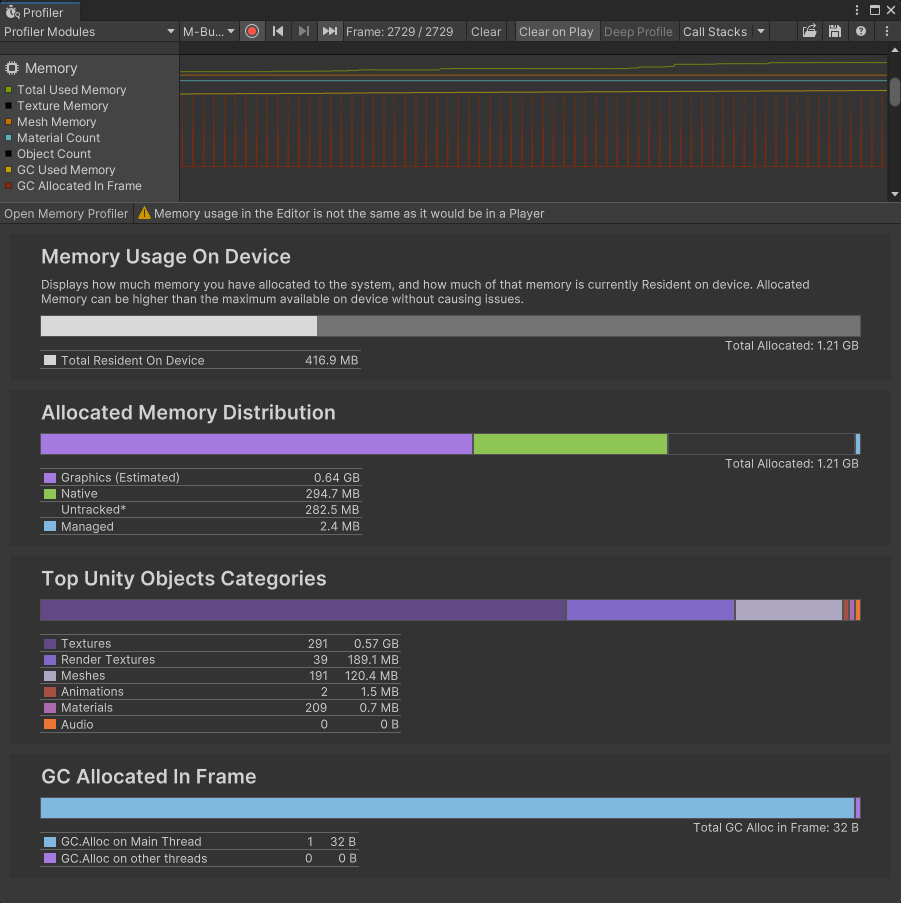
- Textures: 0.77 GB → 0.57 GB (−~200 MB)
- Graphics (estimated): 0.84 GB → 0.64 GB
- Total allocated: 1.42 GB → 1.21 GB
Note what didn’t change: still 291 texture objects. Nothing was deleted, downscaled, or recompressed — the same textures are simply resident at the mip levels the camera needs instead of mip 0 across the board. On a desktop GPU the savings show up in the graphics memory accounting, as here; on mobile’s unified memory this lands directly on your RSS, which is where it matters most.
Tuning it without flying blind
This is the part Unity doesn’t give you tooling for on SRP, so we built the debug view into PerfLint’s Runtime Profiler — live, in Play Mode:
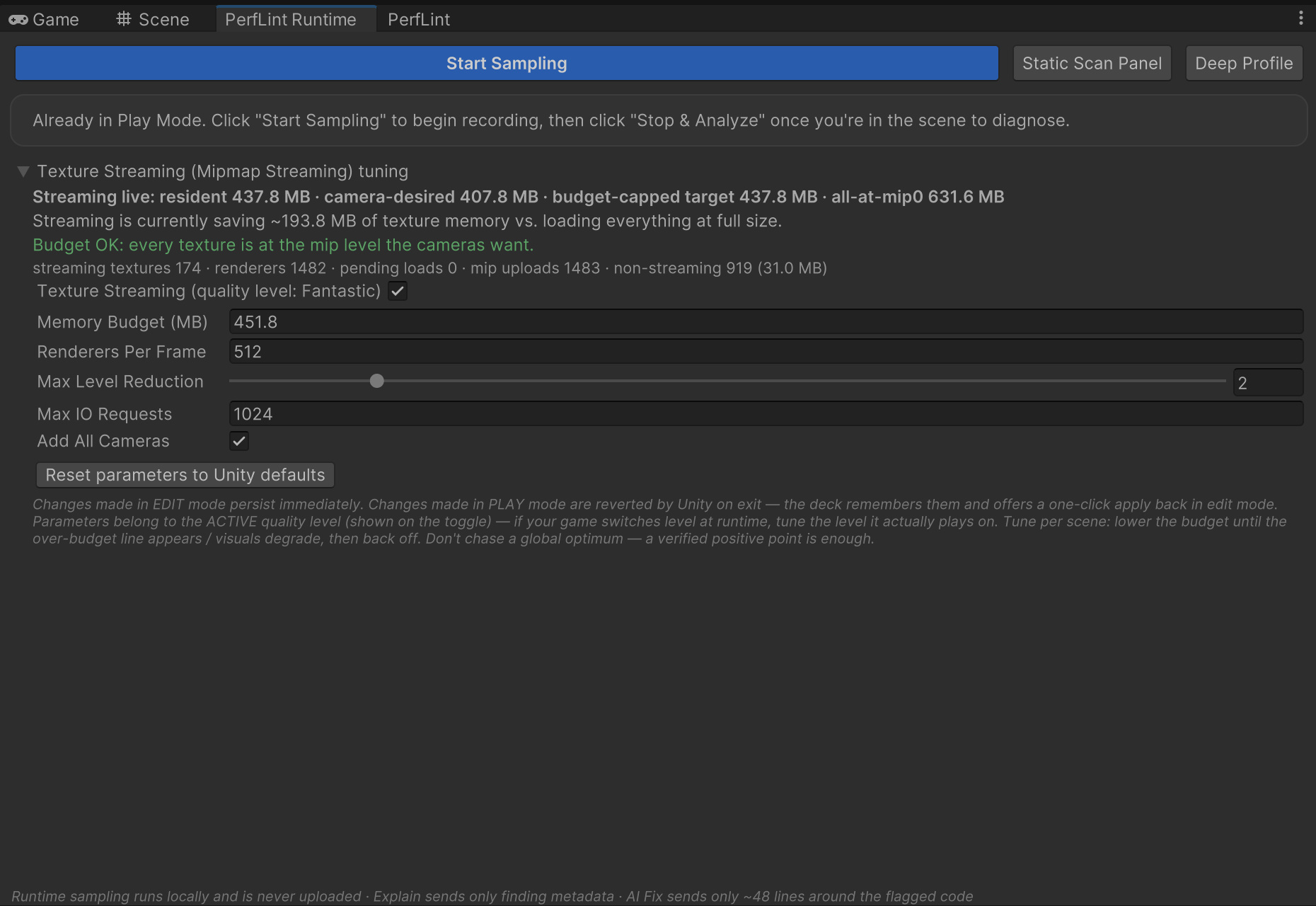
The readout that matters most is the top line: resident 437.8 MB vs. camera-desired 407.8 MB vs. everything-at-mip-0 631.6 MB — i.e. streaming is currently saving ~194 MB, and every texture is at the mip level the cameras want (the green line). If you lower the Memory Budget past what the cameras need, that line flips to an explicit over-budget warning — the moment quality starts being traded, you’re told, instead of squinting at distant rocks wondering if they got blurrier.
The workflow that falls out of this is simple: per scene, lower the budget until the warning appears or visuals degrade, then back off one step. Here the budget landed at ~450 MB with headroom to spare. Don’t chase a global optimum — a verified positive point is enough.
And the picture?
The fear that keeps this feature off is visual. Here’s the game view with streaming active — 4K, distance haze, thatched roofs, the works:
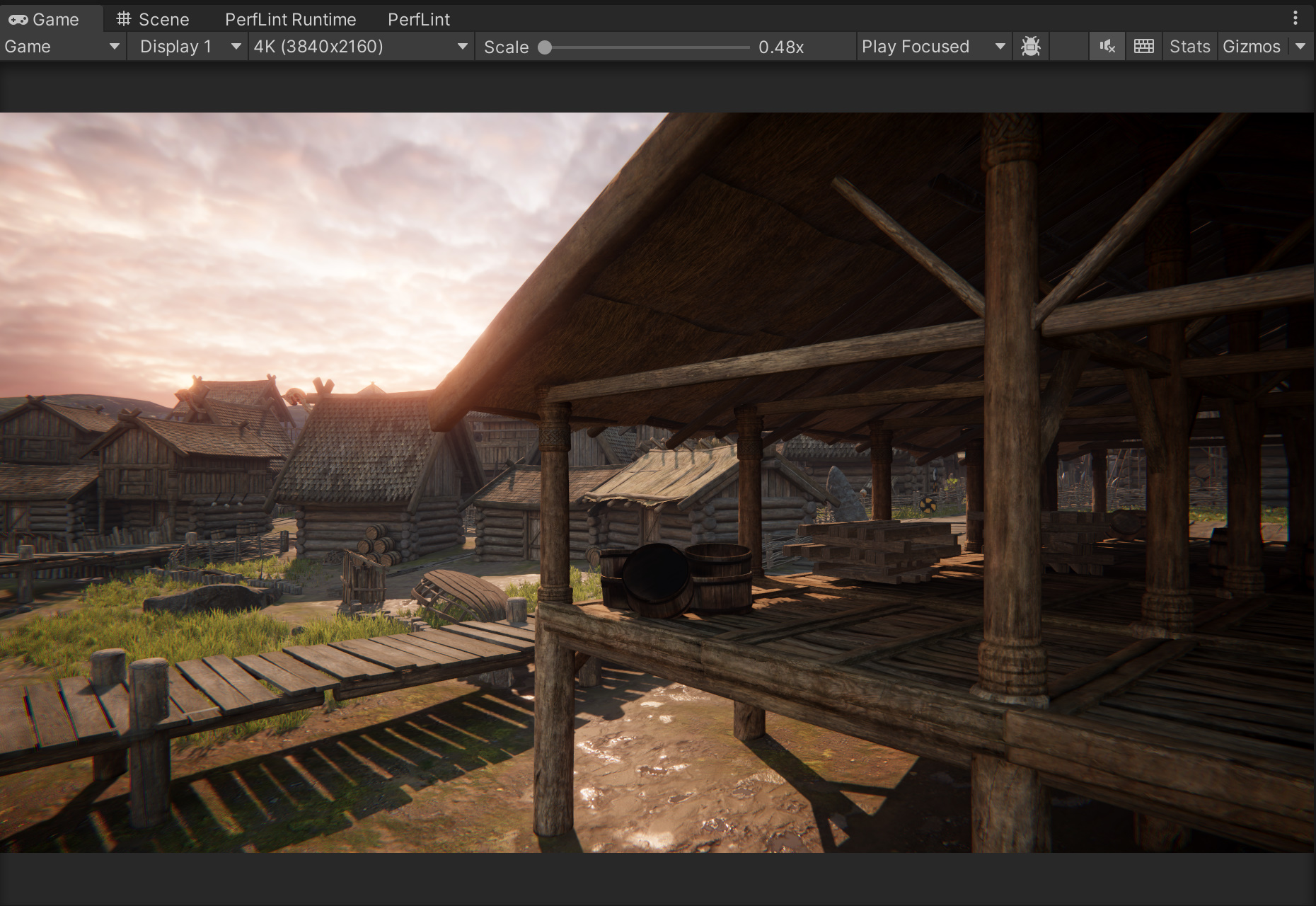
Nothing to circle in red. Which is the point: within budget, streaming renders exactly the mips the camera resolves anyway. The quality risk only exists in the over-budget state — and the deck makes that state loud.
The honest footnotes
- Savings depend on your scenes. A camera that stares at everything up close desires full-res mips and streaming saves little; scenes with depth (this one) are where the distance dividend lives. That’s why the finding reports a pool, not a promise.
- Play Mode tuning reverts on exit — Unity restores Quality Settings when leaving Play Mode. The tuning deck remembers what you dialed in and offers a one-click apply back in edit mode, so a good tuning session doesn’t evaporate.
- The parameters are per quality level. If your game switches quality levels at runtime, tune the level it actually plays on (the deck shows which level is active).
The takeaway
Mipmap Streaming is one of the best memory-per-effort trades in Unity, and it goes unused because the switch is split in two, the tooling is missing on SRP, and the failure mode is invisible. Fix those three things and it’s genuinely one click: 0.77 GB → 0.57 GB of texture memory on Unity’s own demo, zero visible quality loss, verified in the Profiler.
PerfLint’s scan (free) finds and quantifies the opportunity locally — nothing is uploaded. The one-click batch enable and the runtime tuning deck ship with it. Try it on your project →
Rule reference: PERF.TEXSTR001 · PERF.TEXSTR002